Showing posts with label Software. Show all posts

Cara Mudang Pasang Ekstensi IDM di Google Chrome TERBARU (VER Version 67.0.3396.99) (AGUSTUS 2018)

Cara Mudang Pasang Ekstensi IDM di Google Chrome_ArchiMateriali.com
ArchiMateriali.com - Holla sobat Archi dimanapun berada. Sudah berbahagiakah hari ini? Semoga ya. Kenapa jarang sekali menulis, Mas? Dikarenakan kesibukan di dunia nyata (pekerjaan) yang begitu menyita waktu. Kali ini kita akan membahas bagaimana cara mudah pasang ekstensi Internet Download Manager atau IDM di peramban Google Chrome. Ekstensi IDM itu apa sih Mas? Saya yakin sobat Archi pasti ada yang memakai aplikasi Internet Download Manager (IDM) di laptop atau komputernya. Dan sebuah peramban harus terinstal ekstensi IDM untuk bisa secara otomatis muncul jendela unduh IDM setiap kali hendak mengunduh sesuatu, apa pun itu.
Jadi ceritanya kemarin IDM saya terdetek bajakan tidak resmi. Maklumlah, hehehe. Dan ketika saya coba pasang kembali menggunakan master bajakan yang lain akhirnya bisa kembali digunakan. Tetapi ekstensi IDM di peramban Google Chrome saya hilang atau tidak aktif. Jadi setiap kali hendak mengunduh sesuatu tidak bisa melalui IDM melainkan langsung di unduhan peramban. Duh Gusti....

IDMGCExt.crx

Tips pertama yang saya gunakan dengan menarik file IDMGCExt.crx yang berada di folder C:\Program Files (x86)\Internet Download Manager ke dalam Google Chrome dengan harapan ekstensi IDM bisa terpasang. Hal ini pernah saya lakukan dan bisa.Tetapi entah kenapa kali ini tidak mau terpasang. Alias Gagal. Tidak berhasil.
Sampai di sini bingung. Karena setiap kali mengunduh masih saja tidak mau masuk lewat IDM. Pusing abang dik, haha

IDM Integration Module

Setiap masalah Allah pasti selalu memberikan jalan keluarnya. Akhirnya setelah beberapa hari utak-atik tidak jelas permasalahan ini terselesaikan juga. Dengan apa? Yaitu dengan menginstal ekstensi IDM lewat Chrome Web Store resmi miliknya Internet Download Manager bukan menggunakan pengembang yang lain.

Bagaiman caranya Mas?

1. Sobat Archi masuk ke Google Chrome yang hendak dipasangi ekstensi IDMnya.
2. Kemudian klik alamat tautan ekstensi IDM di Chrome Web Store https://chrome.google.com/webstore/detail/idm-integration-module/ngpampappnmepgilojfohadhhmbhlaek
3. Muncul jendela IDM Integration Module, pilih Add to Chrome.
4. Pilih tambahkan ekstensi. Kemudian tunggu prosesnya sampai selesai.
5. Jika berhasil, tulisan add to chrome akan berubah menjadi added to chromeatau biasanya akan terbuka jendela tab baru pemberitahuan IDM Integration Module berhasil dipasang.
Sampai di sini sobat Archi sudah berhasil memasang IDM Integration Module di Google Chrome sobat. Mudah bukan, Sob? Saya yakin sobat semua bisa melakukannya dengan baik. Selamat mencoba ya Sobat Archi.

White Screen after logging in (VIDEOSCRIBE BY SPARKOL)


 After I put in my email and password the first time, it just reloads the login screen. I submit my email and password a second time and it starts loading but then gives me a white screen. I've updated my java and reset the system and still just a white screen inside the window.

Ideas?

1. YOU NEED DOWNLOAD ADOBE FLASH PLAYER

2. YOU NEED TO CLEAR THE CACHE FROM THE DIRECTORY "C:\Users\'UserName'\AppData\Roaming\VideoScribeDesktop\Local Store\Library\Caches" WHEN YOU GET TO THIS FOLDER THERE ARE LOTS OF FILES AND FOLDERS JUST SELECT ALL (CTRL+A) AND DELETE (SHIFT+DEL).

THE 'AppData' FOLDER MAY NOT BE VISIBLE BY DEFAULT. SO IN ORDER TO SEE IT YOU NEED TO TURN ON HIDDEN FOLDERS ON WINDOWS EXPLORER.

SOURCE : http://help.videoscribe.co/support/discussions/topics/11000011091

How to Fix Missing Personal Hotspot on iPhone & iOS 10

Personal Hotspot not working on your iPhone? Here's what to do


The iPhone's Personal Hotspot feature transforms your phone into a mini Wi-Fi hotspot that can share its Internet connection with other nearby devices. Normally, using Personal Hotspot is as simple as going into the Settings app and turning the feature on. But some users – often after upgrading the OS on their devices or after unlocking or jailbreaking their phones – have found that their Personal Hotspot has disappeared. Here are 8 ways to get it back.

Step 1: Restart Your iPhone

This is the best first step in almost every troubleshooting situation. A restart often clears simple problems and gets you back on track. I'd guess that a restart won't work for most people in this situation, but it's simple and quick, so it's worth a try.
To restart your iPhone, hold down the home and sleep/wake buttons at the same time until the Apple logo appears on the screen and then let go.
For the iPhone 7, 8, and X, the restart process is a bit different. Check out this article for more details on restarting those models and for other restart options.

Step 2: Try Cellular Settings

Sometimes when the Personal Hotspot menu disappears from the main screen in the Settings app it's still present in another place. This option uses that to get it back.
  1. Open Settings.
  2. Tap Cellular.
  3. Tap Personal Hotspot.
  4. Move the Personal Hotspot slider to on/green.
  5. Go back to the main Settings screen and you may see Personal Hotspotlisted right under Cellular and above Notifications. If so, the problem is solved. If not, try the next step.
You can also try turning your cellular connection on and off. To do that, open Control Center and put your phone into Airplane Mode, then turn Airplane Mode off.

Step 3: Reset Network Settings

In some situations, Personal Hotspot may have disappeared due to a problem with the settings that control your phone's access to cellular and Wi-Fi networks (they may have accidentally been changed during the OS upgrade or jailbreak). Resetting those settings and starting fresh should help:
  1. Tap Settings.
  2. Tap General.
  3. Scroll all the way to the bottom and tap Reset.
  4. Tap Reset Network Settings.
  5. In the pop-up warning, tap Reset Network Settings.
Your iPhone will restart. When it's done booting up, check the main Settings screen for the Personal Hotspot option. If it's not there, continue on to the next step.

Step 4: Check Phone Name

Every iPhone has a name. Usually, it's something along the line of "Sam's iPhone" or "Sam Costello's iPhone" (if you're me, that is). That name doesn't get used for much, but believe it or not, sometimes it can affect whether or not Personal Hotspot is visible. If you've changed the name of your phone or have unlocked your phone:
  1. Tap Settings.
  2. Tap General.
  3. Tap About.
  4. Look at the Name menu. If the name is different than what you were expecting, tap Name.
  5. On the Name screen, tap the X to delete the current name and type in the old one.
If Personal Hotspot doesn't appear on the main Settings screen, move on to the next step.

Step 5: Update Carrier Settings, If Available

While it doesn't happen as often as Apple releases new versions of the iOS, from time to time your carrier (AKA your phone company) releases new versions of the settings that help your iPhone work with its network. Needing to update to the latest settings could be the cause of the missing Personal Hotspot. To check for new carrier settings:
  1. Tap Settings.
  2. Tap General.
  3. Tap About.
  4. If updated settings are available, a prompt will appear on screen. Follow the instructions.
Learn more about carrier settings and how to update them.

Step 6: Update APN Settings

If all of the steps so far didn't work, things are definitely getting trickier. This step doesn't apply to many iPhones running newer versions of the iOS (in fact, you won't find these options on very new versions) or in use in the U.S., but if you're on an older OS or overseas, it could help.
Your phone's APN, or Access Point Name, helps it understand how to connect to cellular networks. Tweaking the APN settings can sometimes resolve the problem.
  1. Tap Settings.
  2. Tap Cellular (or Cellular Data Network, depending on which version of the iOS you're running).
  3. Look at the Cellular Data menu. lf there's any text in the APN field, make note of it. If there's nothing there, skip to step 5.
  4. Scroll to the Personal Hotspot menu. In the APN field, type in the text from the last step.
  5. If there was nothing in the Cellular Data menu, just scroll down to the Personal Hotspot section and enter any text you like in the APN, Username, and Password fields.
  6. Go back to the main Settings screen and Personal Hotspot should appear shortly.

Step 7: Restore From Backup

If nothing has worked, it's time for a more radical step: restoring from backup. This wipes all the data and settings currently on your iPhone and replaces them with an older version (make sure to pick one that you know works). Keep in mind: anything that you don't have backed up will be lost during this process, so make sure you've got everything you need to be saved before starting.
For full details on this process, check out How to Restore iPhone From Backup.

Step 8: Contact Apple

If you've gotten this far and still don't have Personal Hotspot, you've got a more complicated problem than you can solve on your own. Your best at this point is to get help directly from Apple. Try going to your nearest Apple Store for expert help.

Apple hides this feature on its site, so learn how to make an Apple Store appointment using this article.

(I AM SUCCES IN STEP 6) !!!!!!!!!!!!!!

Ribbon has suddenly magnified itself in word and file explorer.(Microsoft Word 2013 Ribbon enlargement help!) (Bigger Icons and Fonts in the Ribbon and Tabs, Please? )

Ribbon has suddenly magnified itself in word and file explorer.
(Microsoft Word 2013 Ribbon enlargement help!)

 (Bigger Icons and Fonts in the Ribbon and Tabs, Please? )

Hi,
Please may someone help me, my computer randomly decided to increase the size of the ribbons in things like excel, word and the file explorer. Nothing else has been magnified anywhere on my computer. I've check and the resolution is default, so are all other display settings i can find. 
No other programs appear to have been affected. It is just really annoying as the ribbons now take up half the page. I assume it should be a simile fix however i can not for the life of me work this one out!


THIS IS THE SOLUTION
FIRST 1st


Click Cuztomize Quick Accses Toolbar


SECOND 
CLick Touch/Mouse Mode


THIRD

Click MOUSE


VOALAA!!!!!!


LINK GROUP TELEGRAM CPNS


GROUP BAHAS SOAL CPNS


Link Group ini sebenarnya adalah  https://t.me/joinchat/HFhdzUMk0cTo0XShDRdZcQ


Jadi group ini mempunyai jadwal seperti ini

Jadwal sementara 1Januari 2018- Pengumuman CPNS👇
Grup TIU: Senin, Rabu, Jumat, Minggu
https://t.me/joinchat/HFhdzUjXlLdFFNrJebtSzA
Grup TWK: Selasa, Kamis, Sabtu
https://t.me/joinchat/HFhdzUeUq5rcqNjCf4eY_A
Grup besar, TKP: Minggu
https://t.me/joinchat/HFhdzUMk0cTo0XShDRdZcQ


CHANNEL SOAL CPNS


Channel TWK CPNS 2017. semoga sukses!!! https://t.me/RekapSoalTWK.
Channel TIU : https://t.me/RekapSoalTIU ;
Channel TKP : https://t.me/RekapSoalTKP


GROUP BAHAS SOAL PSIKOTEST


dan untuk linknyahttps://t.me/BahasSoalPsikotes


CHANNEL SOAL PSIKOTEST

https://t.me/RekapSoalPsikotes
Berisi rekapan soal dan pembahasan dari group bahas soal psikotes


GROUP GROUP  TENTANG CPNS LAINNYA

1. latihan soal cpns terlengkap
https://t.me/soalcpnskemenkumham

2. Berbagi Ebook untuk Indonesia
https://t.me/sharingebook

3. Kumpulan Soal Tes CPNS 2018 terlengkap
https://t.me/soal_test_cpns_terlengkap

4. https://drive.google.com/drive/folders/0BwxyyHN8zFL1T1VCcmVmcHFiTkk


SOFTWARE-SOFTWARE PENUNJANG UNTUK LAPTOP KAMU (ALARM BATTERY FULL)

1. DIMSCREEN


  cocok nih software buat kamu yang pgen layarnya jadi dim (kalo merasa terlalu terang) mungkin karena pencahayaan di ruangannya g terlalu terang
tapi saya coba software ini cocok di laptop dell sdgkan di laptop vaio ga cocok

berikut linknya :
4shared
https://www.4shared.com/rar/kwaLbLEOca/DimScreen.html
Gdrive
https://drive.google.com/open?id=1M1qzW2N2Yh5dbMWTp2TFt5vPQ_O2B_a4


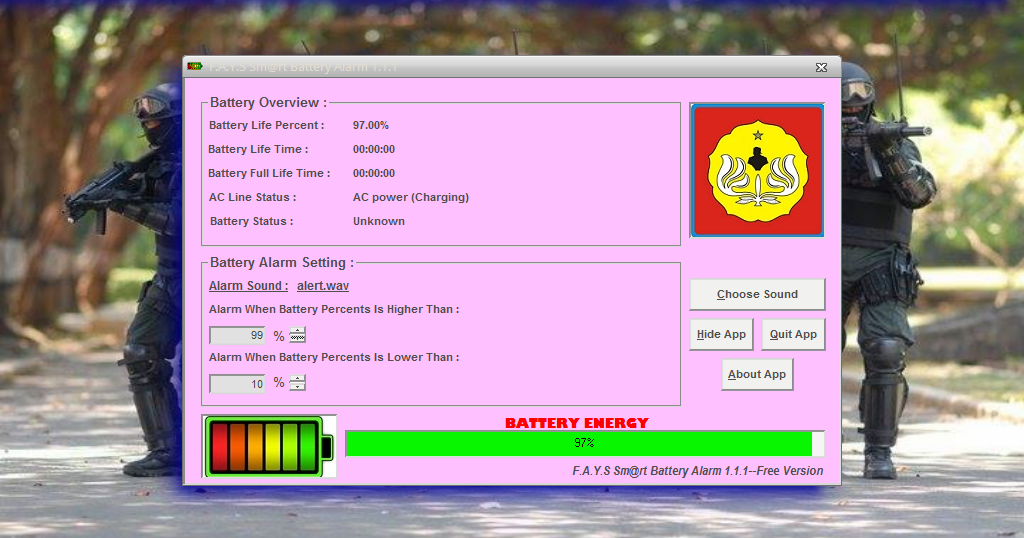
2. FAYS smart battery alarm


cocok nih buat yang mau ada alarm di laptopnya ketika battery full


4 shared
https://www.4shared.com/rar/dAdiWvh0ca/FAYS_SmrtBatteryAlarm_FREE.html

g drive
https://drive.google.com/open?id=1heGJfM59OyXkbNfqzoFHNBnpbNRPf4Ve

Source : http://andiyantosangpembelajar.blogspot.co.id/2014/11/aplikasi-battery-alarm-laptop-awetkan.html

3 Advanced Key and Mouse recorder macro manager


lah software ini mantab buat yg suka ngelakukan pekerjaan yg di ulang2
tinggal setting hotkeynya langsung beres

4 shared


g drive

4. RAINMETER 


Source : https://www.pcworld.com/article/2052820/software/20-free-pc-apps-to-ease-daily-tasks.html#slide21

https://www.pcworld.com/article/262139/supercharge-your-desktop-with-rainmeter-widgets.html

5. QTTABBAR


Source : https://www.pcworld.com/article/2052820/software/20-free-pc-apps-to-ease-daily-tasks.html#slide5

6. WALLPAPER ENGINE


source : http://store.steampowered.com/app/431960/Wallpaper_Engine/

Office 2013/2016: Fuzzy/Blurred Text Issue, Solved.( Mengatasi Blur pada microsoft Office 2013/2016)


Office 2013 is the mightiest and the greatest Office Suite ever. But yes, it has some minor issues, which can be easily solved. One of them is the Fuzzy Text, and mind you this one can be really frustrating.

Solving the Fuzzy/Blurred Text issue


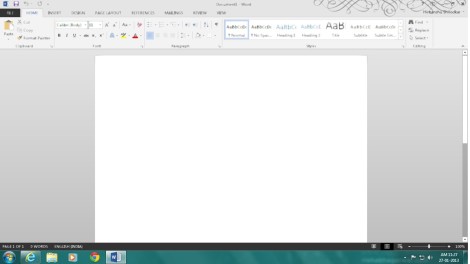
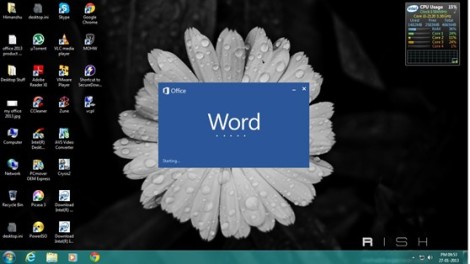
Step 1: Open any Office App.


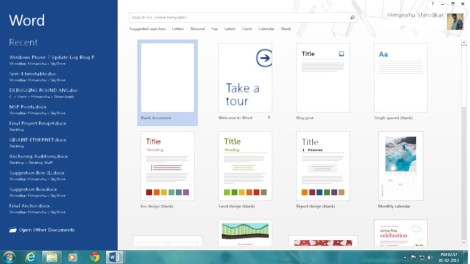
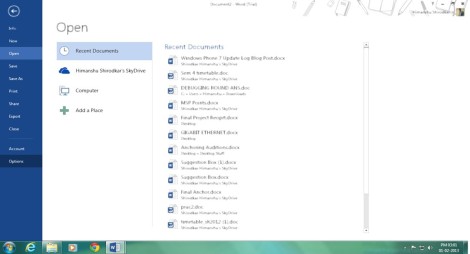
Step 2: Click Open other Documents on Word Start


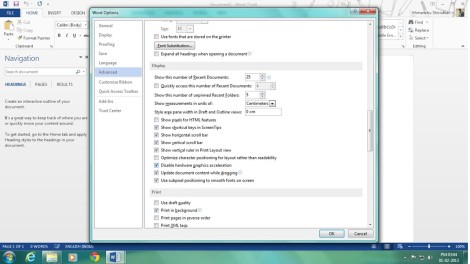
Step 3: Select Options.


Step 4: In Options, go to Advanced and Check the Disable Graphics Acceleration Box. Click Ok and you are done.


Credits: http://www.insideris.com/how-to-fix-microsoft-office-15-2013-blurry-text/

https://himanshushirodkar.wordpress.com/2013/02/01/office-2013-fuzzyblurred-text-issue-solved/

Download STRONGHOLD CRUSADER II FULL VERSION + CRACK FOR PC


Download STRONGHOLD CRUSADER II FULL VERSION + CRACK FOR PC  - Stronghold Crusader 2 adalah sekuel lama ditunggu ke kastil sim asli. Setelah 12 tahun Stronghold kembali ke gurun dengan mesin 3D baru dan kuat Havok Physics. Firefly Studios akan merebut kembali adiktif, cepat gameplay Crusader asli dan simulasi kastil otentik.


Minimum :
OS: Windows® XP/Vista/7/8 with latest service packs
Processor: Intel® Core™2 Duo 2Ghz or equivalent
Memory: 2 GB RAM
Graphics: NVIDIA® GeForce® 8800GT 512MB or AMD Radeon™ HD 2900XT 512MB or better
DirectX: Version 9.0c
Network: Broadband Internet connection
Hard Drive: 4 GB available space

Recommended :
OS: Windows® Vista/7/8 64-bit with latest service packs
Processor: Intel® Core™ i5 or equivalent
Memory: 8 GB RAM
Graphics: NVIDIA® GeForce® GTX 460 1GB or AMD Radeon™ HD 5830 1GB or better
DirectX: Version 9.0c
Network: Broadband Internet connection
Hard Drive: 4 GB available space